Introducing Case Management: Turning Student Movement Data into Meaningful Follow-up
A new way to identify students needing support, monitor classroom exits, record follow-ups and send targeted staff alerts, all within LeaveLens. Explore LeaveLens Case Management: monitor student exits, identify peer patterns, record follow-ups, manage staff alerts and review progress over time.

Every classroom exit represents time away from learning, but an exit count alone rarely tells the whole story. A student may be leaving frequently, spending longer out of class, returning at particular times, or crossing paths with the same peers. The important question is not simply how often is this happening? It is what should we do with what we know?
Case Management is a new capability in LeaveLens that connects student movement analytics with ongoing monitoring, staff follow-up and targeted notifications. It gives coordinators and school leaders a clearer way to identify patterns, document action and review whether movement changes over time, all within the platform already used to log students in and out of class.
Find students who may benefit from closer monitoring
Case Management starts with a Suggested Students view. Rather than asking staff to work through whole-school analytics and construct their own shortlist, LeaveLens identifies students worth reviewing using patterns such as frequent exits, significant tracked time out of class, and repeated potential peer interactions.
Suggestions can be searched, sorted and filtered by year level, house, affected faculty and peer-interaction activity. This allows a year-level coordinator to focus on their cohort, or a Head of Department to examine patterns affecting their faculty.
A particularly useful measure is relative exit frequency. LeaveLens compares a student's exit count with the average for active students in the same year level and house over the selected review period. A year-level figure of 3.0×, for example, means the student recorded three times the average number of exits for that year level. These are frequency comparisons, not measures of minutes lost or proof of a behavioural concern.
Potential peer interactions are assessed using the school's configured minimum overlap and repeated-encounter thresholds. They identify possible out-of-class connections for staff to investigate, not confirmed meet-ups or misconduct.
Students can be added to a case manager's monitoring list directly from suggestions or through a quick student search. Only active students can be newly added.
A live snapshot for every student being monitored
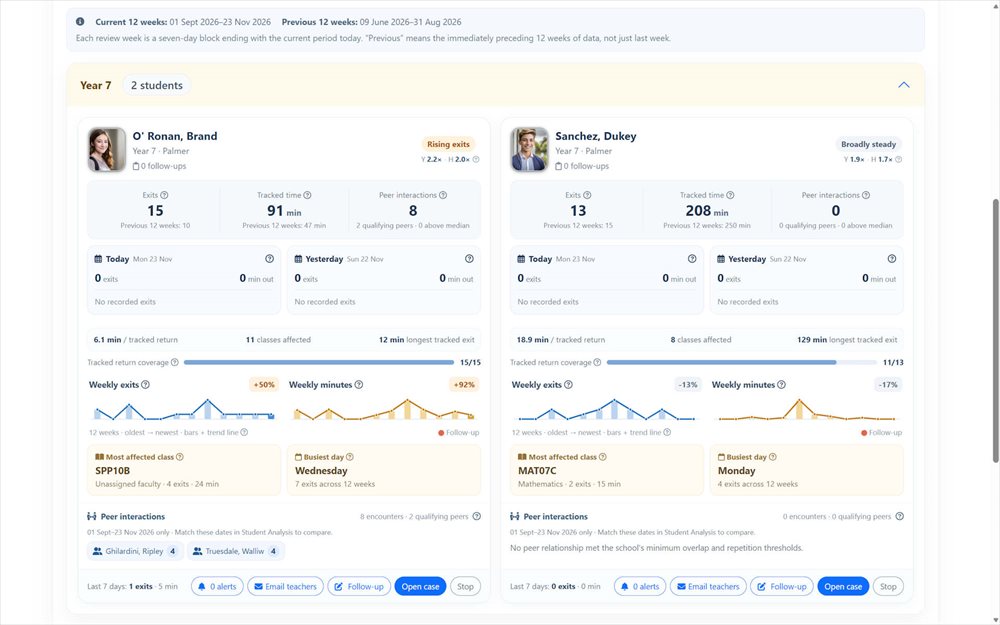
The My Case Management dashboard groups monitored students by year level and gives each student a compact, information-rich widget. Instead of opening multiple reports to establish what has changed, case managers can immediately see:
- Exit frequency and tracked minutes, compared with the immediately preceding period of equal length.
- Peer interactions, including the number of qualifying encounters, each identified peer and links to that peer's Student Analysis.
- Today and yesterday, with exit totals, tracked minutes and an individual class breakdown.
- Weekly movement trends, shown as small bar-and-line charts for both exits and minutes.
- Class and day hotspots, including the most affected class, busiest weekday, and relevant faculty.
- Record quality and duration, including average minutes per tracked return, longest tracked exit, affected classes and tracked-return coverage.
- Relative exit frequency, showing year-level and house comparisons with an explanation of how each figure was calculated.
Staff can choose a 1, 2, 4, 6, 8 or 12-week review period, with clearly labelled dates and comparisons. Tooltips explain the figures, so a change such as “+50% exits” has an understandable baseline rather than standing alone without context.
The dashboard is designed to support a quick daily check: who is improving, who may need attention and where should the next conversation begin?
Record follow-up actions, and see what happens afterwards
Monitoring becomes more useful when staff can record what they have actually done. Case managers can add dated follow-up records for student conversations, parent contact, meetings, staff consultation and other actions, with notes and next steps where appropriate.
Follow-ups can be recorded directly from a student's monitoring widget or from the Case Management section of Student Analysis. They appear on a movement timeline alongside exit counts and tracked minutes. The timeline uses Chart.js charts, with dated markers showing when an intervention or conversation occurred.
This gives staff a practical way to examine questions such as: Did weekly exits fall after a conversation? Did time out of class change? Has the pattern returned several weeks later? Where the data permits, student reporting also compares the 14 days before and after recorded follow-ups. These comparisons are useful context, but they do not establish that an intervention caused a change.
Follow-up visibility is deliberately separated from confidential content. Teachers who can access a student's analytics can see that an action occurred, including its date and category. Detailed comments and next steps are restricted to authorised Coordinator, HOD, Leadership and Executive roles.
Build targeted alerts without notifying everyone about every exit
Case Management introduces student-specific conditional exit alerts, separate from LeaveLens's existing whole-school Student Alert setting.
A case manager can create a rule that notifies nominated school staff when the student exits and a defined condition is met. Conditions can include:
- An exit occurring at all, or the student exceeding a specified number of exits in one day.
- Leaving a lesson in a selected faculty.
- Exiting within a configurable number of minutes after a lesson begins or before it ends.
- Exceeding a specified number of exits from the same lesson.
- Exiting while a particular other student is already out of class.
Rules may use one condition or several, combined with ALL or ANY matching. More than one staff member can receive an alert, and rules can be paused, resumed or deleted as circumstances change.
Alerts are sent only to eligible staff recipients within the school, and the system excludes disabled staff accounts and ineligible assignments. School administrators can also manage configured rules centrally and disable case-managed alert delivery school-wide without altering the separate whole-school Student Alert feature.
The goal is targeted awareness where it is useful, not a constant stream of unnecessary notifications.
Go deeper with Student Analysis and student reports
Selecting Open case takes a case manager into the student's wider Student Analysis page. Here, the case-management timeline sits alongside the existing analysis of exit frequency, minutes out of class, day and period patterns, affected classes and potential peer relationships.
Authorised staff can also generate a Student Report using the date range selected in Student Analysis. The report includes a Case Management section with assignments, follow-up history, alert status and intervention comparisons, applying the same restrictions to confidential notes. This makes it easier to prepare for student-support meetings and review progress across a defined period.
For communication with teaching staff, an Email teachers option opens the user's own email application with the student's current teachers prefilled. Optional CC recipients can be selected from an eligible school-staff search. The message is composed and sent by the staff member through their email client, not through an automatic bulk-email process.
School-wide visibility without losing individual responsibility
A case can have more than one assigned case manager. Staff maintain their own monitoring lists and can Stop monitoring when their involvement concludes, without deleting earlier follow-up history.
For school leaders, All School Cases provides a searchable, read-only register of active and stopped assignments. Executive, Leadership and HOD users can filter by student, case manager, year level, house or monitoring status, and see who is responsible for which cases.
The School Administration workspace also provides oversight of configured case alerts, intended recipients and their enabled or paused status, together with central controls for case-managed notifications.
Access is role-based and school-scoped. New case assignments require an active student, and alerts are not sent for ineligible or disabled staff. These checks help keep both responsibility and communication aligned with current enrolments and staffing.
Support informed decisions, not assumptions
LeaveLens also supports a simple Medical exemption indicator for students who may have medical reasons to leave class regularly. It is a visibility flag only: no diagnosis or medical explanation is recorded. The indicator reminds staff that repeated exits need context and should not automatically be interpreted as a behavioural issue.
That principle runs through Case Management more broadly. High relative exit frequency, substantial time away from class or repeated peer overlap should prompt a considered review, not an automatic conclusion. The combination of movement data, recorded actions and clear responsibility helps schools respond consistently while keeping student wellbeing in view.
From insight to action
LeaveLens has always helped schools understand time out of class. Case Management closes the gap between identifying a pattern and acting on it: find students who need attention, monitor the changes, involve the right staff, record what has happened and revisit the evidence over time.
For coordinators, Heads of Department and school leaders, that means fewer disconnected spreadsheets and a clearer, shared picture of student movement and follow-up.
Every minute matters - but understanding what happens next matters too.